
How do I set or change a User limit in FastNet Business?
Last Updated: 17 Jul 2026
A FastNet Business site administrator can set or change a User Limit in the administration section of FastNet Business.
An administrator cannot set another user’s daily limit higher than their own limit.
Please note: it's important to regularly review user limits to ensure they remain appropriate and reflect each user's operational needs.
To set or change a User Limit in FastNet Business
- Log in
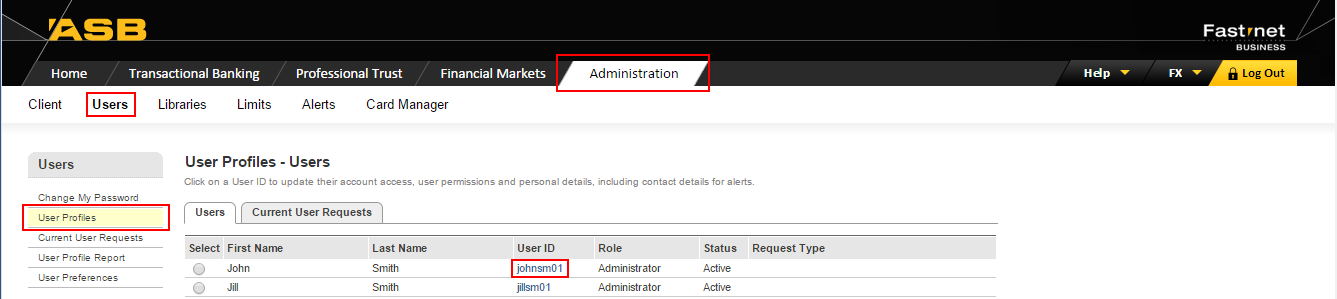
- Go to the Administration section
- Select Users
- Select User Profiles
- Select the User ID for the user you want to update
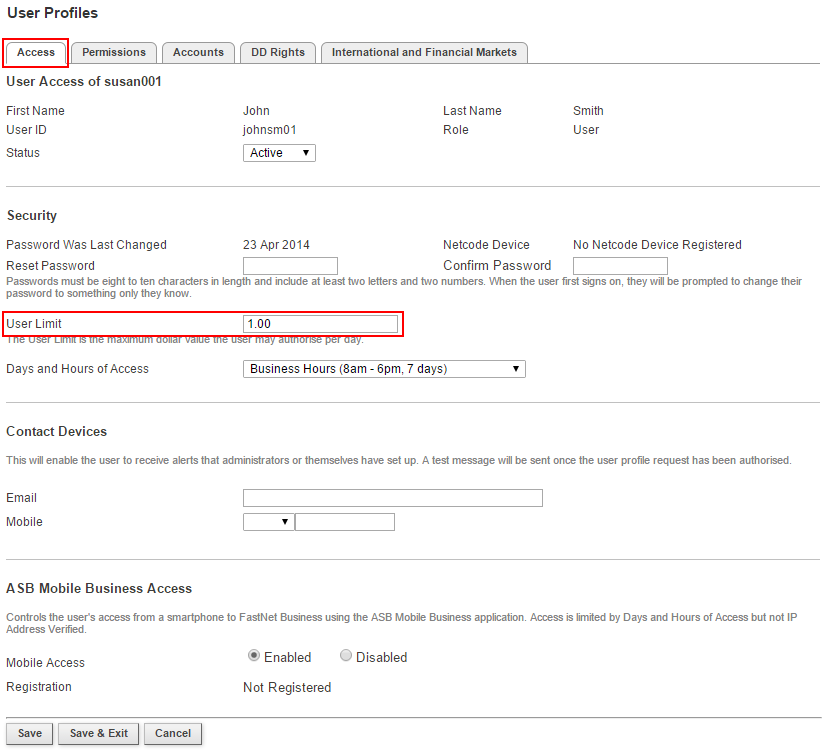
- You will be taken to the Access tab
- Under Security, change the User Limit
- Select Save & Exit
Once saved, your change is ready for authorisation and you will be taken back to the User Profiles main screen, listing all your users.
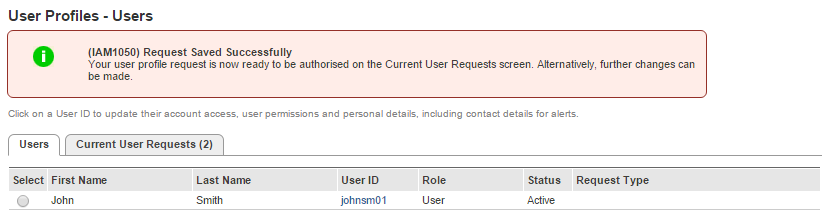
You can now authorise a user from the Current User Requests tab. After you authorise the user, log out and log back in so the updated limits take effect.
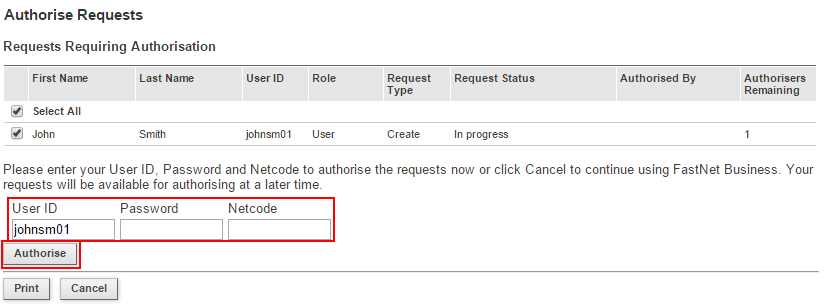
To authorise a user
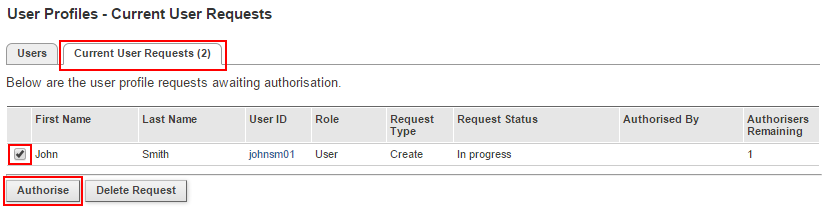
- Select the Current User Requests tab
- Select the checkbox for the user you want to authorise
- Select Authorise
- Enter your User ID, Password, and Netcode token number
- Select Authorise
After you authorise the user, the updated limits apply when you log out and log back in.
Did this answer your question?
Related Answers
-
There are a few ways to check daily account and user limits, depending on what information you are looking for. ...
-
FastNet Business limit types FastNet Business has different daily limits depending on the type of payment, account, and user access. ...
-
To change / remove permissions or account access for a user or administrator, go back into the users profile and ...
-
A new suffix should automatically appear on your FastNet Business site, however it is not automatically assigned to any users. ...
-
To delete an administrator Profile Deleting administrators can only be performed by the FastNet Business Helpdesk. To request a deletion ...
-
All netcode tokens must be ordered via the FastNet Business Helpdesk. You have a couple of options when requesting a ...
-
When a user profile has been deleted, it will be removed from the User Profiles – Users list. As a ...
-
When a user profile has been deleted, it will be removed from the User Profiles – Users list. As a ...
-
There are two types of users on FastNet Business: Administrator User If you wish to change an administrator to a ...
-
You need to be a FastNet Business Administrator to unlock a user, reactivate an inactive user or reset a user’s ...